Time Machine stops quietly.
A backup fails or stalls, and Time Machine may not tell you for days.
Backup Atlas
See at a glance what changed on your Mac, find and restore any file*, and know your backups are actually happening.
Requires macOS 14 Sonoma or later · Works with the Time Machine backups you already have.
Why it exists
A backup fails or stalls, and Time Machine may not tell you for days.
To find one file, you step back through the snapshots one at a time and hope to spot it.
Time Machine goes full screen, and since macOS Sonoma you can’t choose where the restored file goes.
At a Glance
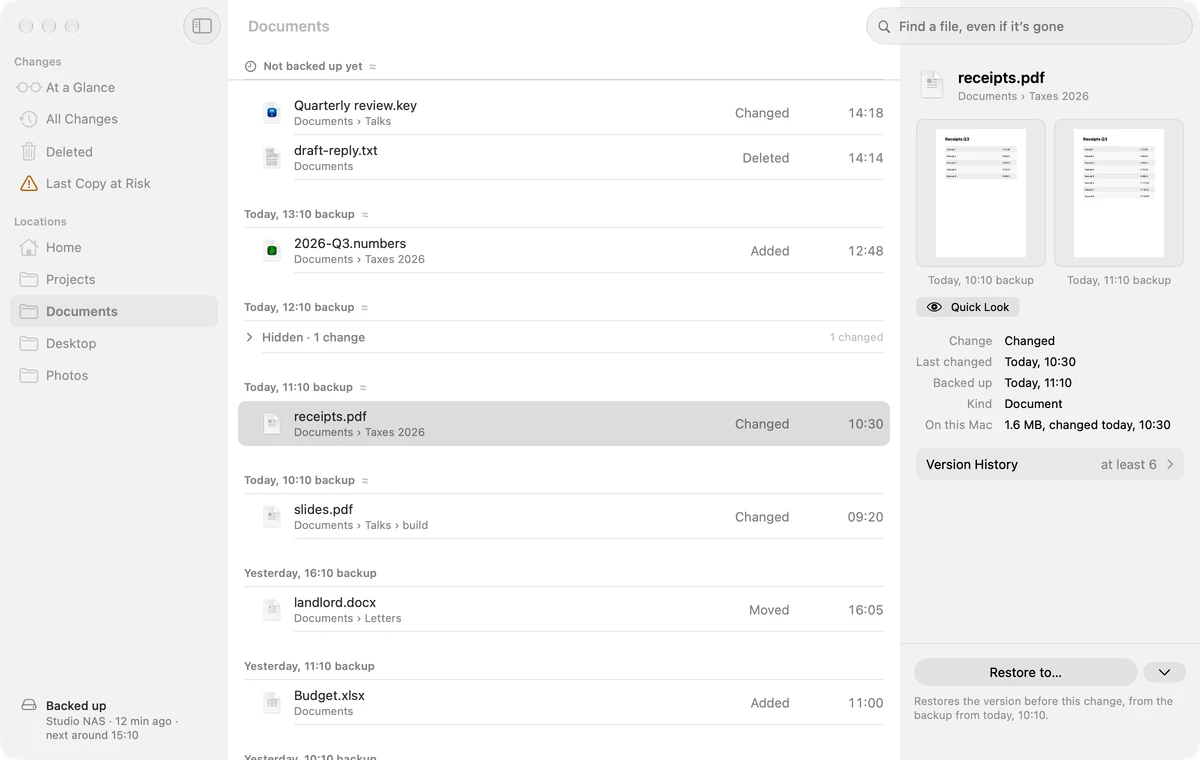
Open Backup Atlas and it starts with where you stand: Everything up to 14:10 is backed up
. Under it, your week of backups, then the documents you deleted and the ones you changed.
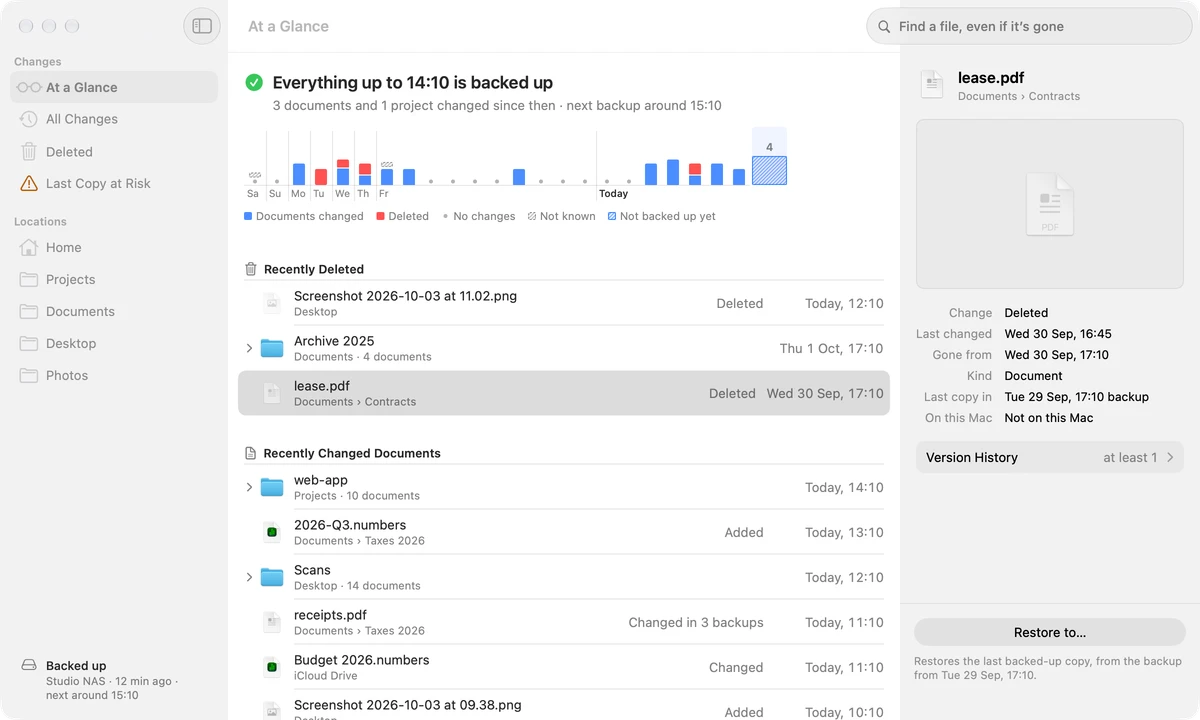
The week strip shows how much each backup changed and what was deleted, so a busy afternoon or a quiet weekend stands out. What isn’t backed up yet sits at the end.
The documents you’d go looking for, newest first. Caches and app data stay out of the way, and All Changes keeps the complete timeline.
A project, a camera import or an unzipped archive counts as one row. Open it to see what’s inside.
Find and restore
Type a name into Find a file, even if it’s gone
. Search covers the files that changed and the ones you deleted, and shows where each one was.
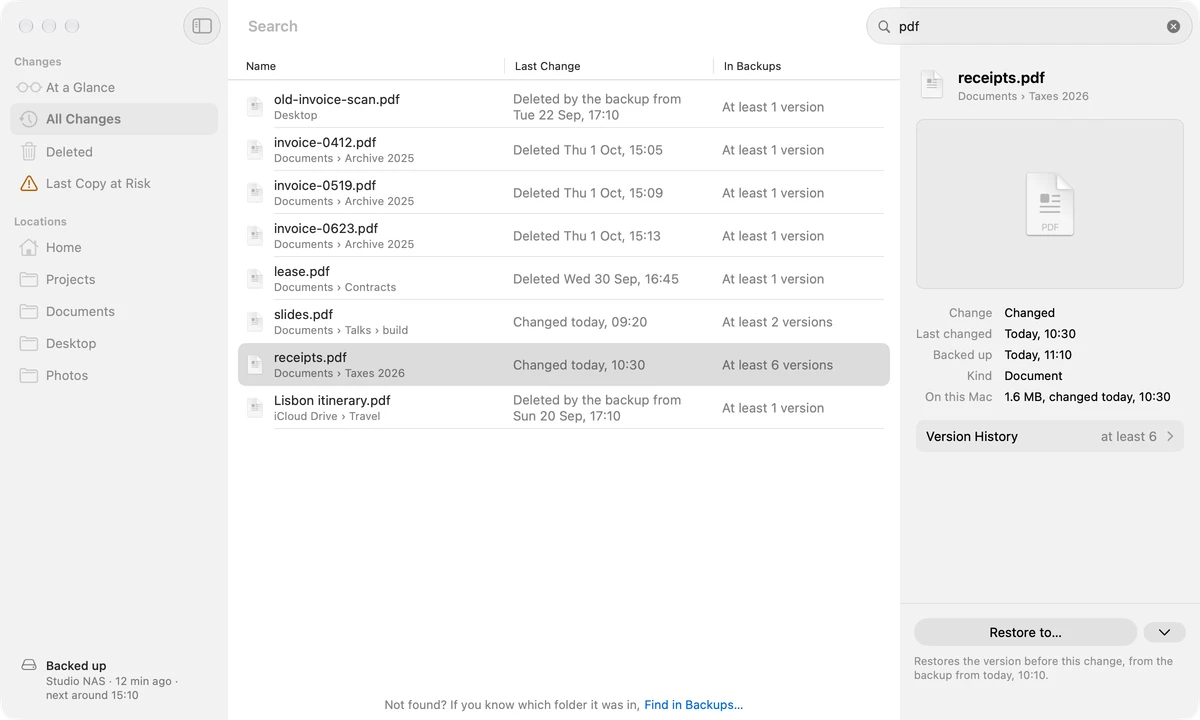
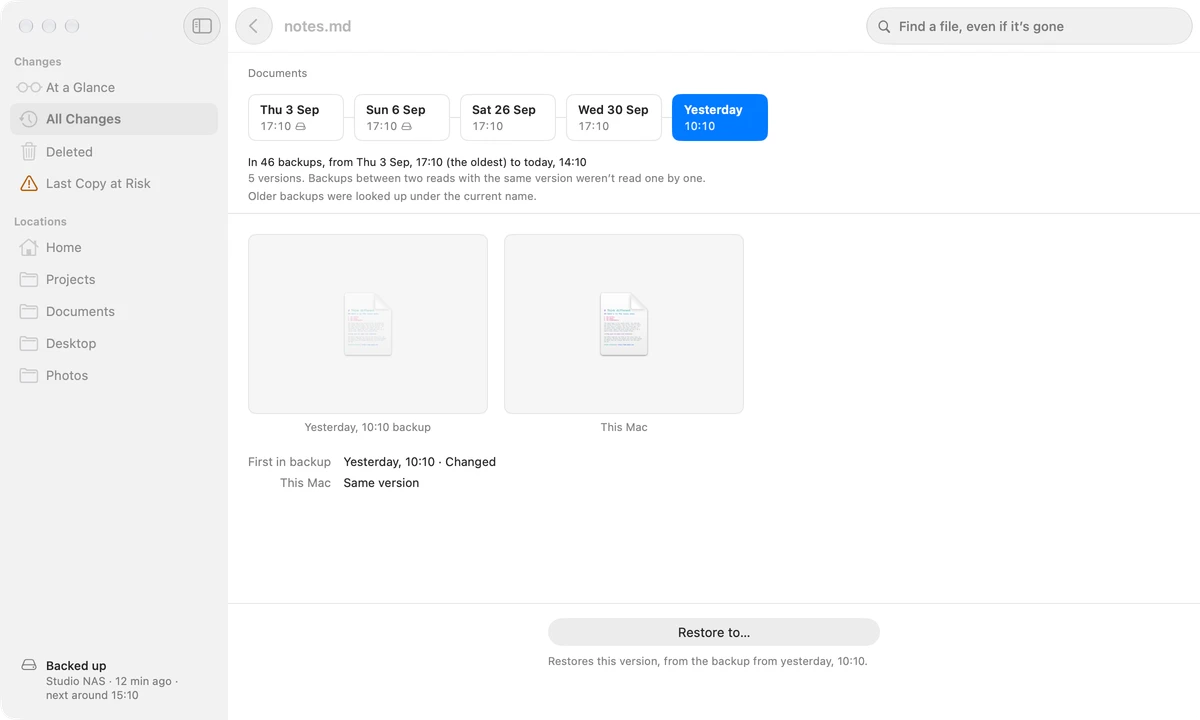
Pick a version and compare it with the one on your Mac. Then restore the one you want.
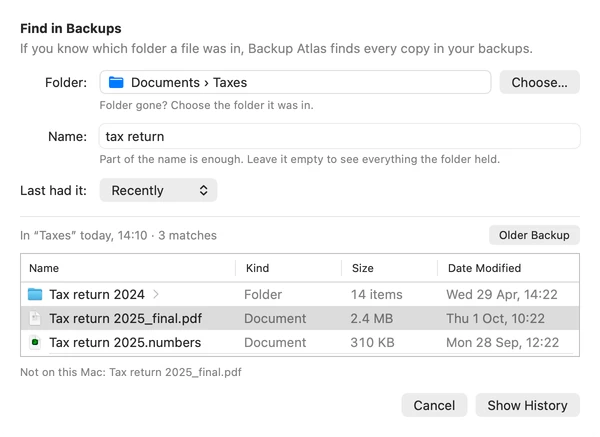
Find in Backups
If you know which folder it was in, Backup Atlas finds every copy in your backups, even from before you installed it.
Choose the folder, type part of the name, and it lists what that folder held, one backup at a time. Show History then reads all your backups for that file. Older backups are read from your backup disk while it’s connected. Backup Atlas only reads; nothing on it is changed.
Compare
Select a change and Backup Atlas shows it: a line-by-line diff for text and code, or the two versions side by side for PDFs, images, Pages and Office documents.
In the menu bar
Backup Atlas lives in the menu bar and keeps an eye on Time Machine. Its icon gets an orange dot only for real problems: a backup that’s overdue, a backup disk that can’t be reached, backups that keep failing to finish, or a backup that stalled.
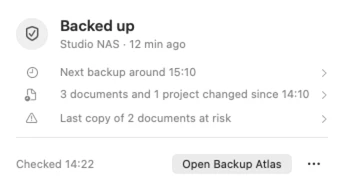
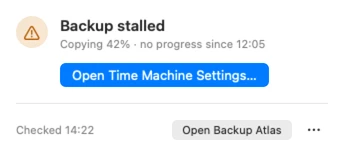
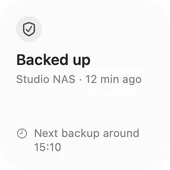
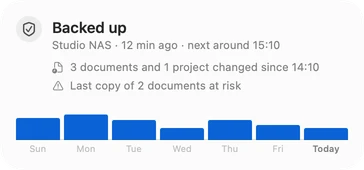
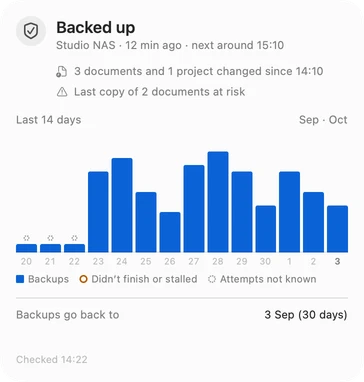
The widget shows the same status in three sizes: small, medium with your week, and large with two weeks of backups and how far back they go. It never shows a file name, only counts.
Last Copy at Risk
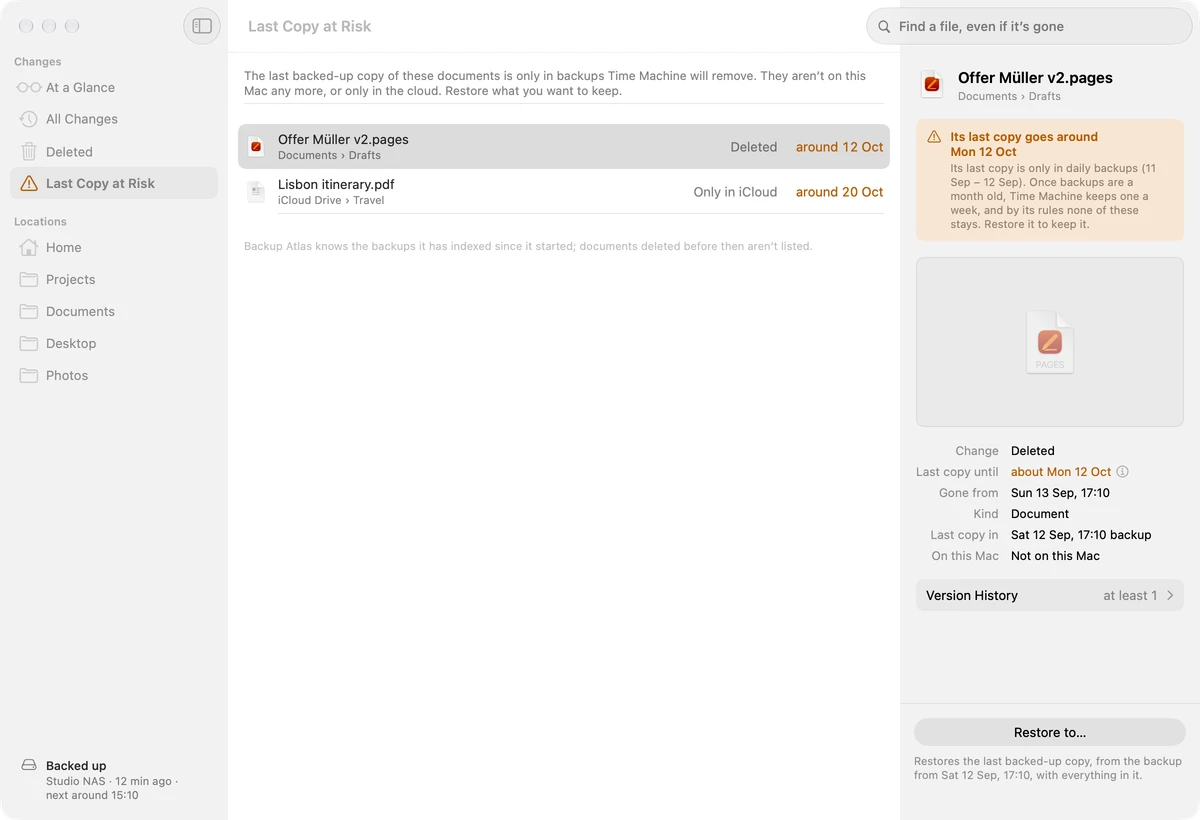
Time Machine thins old backups: it keeps hourly ones for a day, daily ones for a month, then one a week. A document you deleted can lose its last copy that way. Backup Atlas lists deleted documents and documents only in iCloud whose last backed-up copy is about to be thinned away, and says when.
Restore it to keep it.
For developers and power users
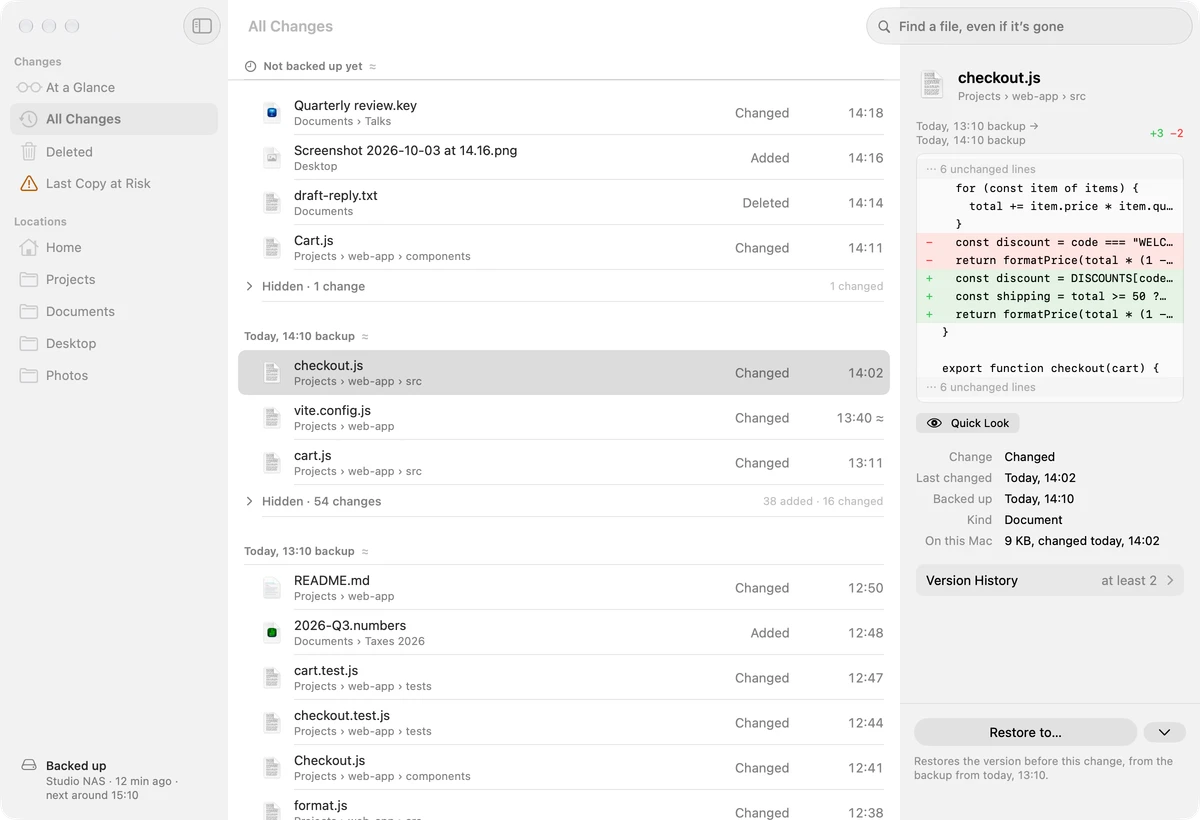
Honest about what it knows
Your history starts today. Time Machine takes a picture every hour. Backup Atlas stays in the menu bar and records changes as they happen, while it runs. In the background, on power and while the backup disk is connected, it scans your older backups to fill in the past.
When it wasn’t running or couldn’t see, it says so, and in a few words why, instead of guessing.
A time or a boundary it had to work out afterwards is marked, so you know which numbers are exact.
A file’s history says whether a version was replaced, deleted, or isn’t known, and never invents one that isn’t there.
Privacy
No account, no cloud. What Backup Atlas records and indexes stays on your Mac. Backup Atlas only goes online to check for updates, and you can turn that off.
Backups are opened read-only and never changed. Backup Atlas doesn’t start, stop or delete backups.
Your key is checked on your Mac. No activation server, nothing to sign in to.
macOS protects Time Machine’s settings and backups, so Backup Atlas needs Full Disk Access to read them, even for the menu-bar status. The app walks you through granting it.
Details
Built with Apple’s own frameworks. Light and dark appearance.
Follows the language you set for your Mac or for the app.
Every change is a row VoiceOver can read and the keyboard can reach.
Small, medium and large.
For network backups and for USB or Thunderbolt backup disks.
Versions from about the last day are read straight from the local snapshots on your Mac.
One app for Apple silicon and Intel Macs.
Signed with a Developer ID and notarized by Apple.
Requires macOS 14 Sonoma or later.
Version 1.0
Anyone can download Backup Atlas and try it free for 14 days. After that, the menu-bar watchdog keeps running; browsing your changes needs a key.
The beta is full, so we’re not taking new sign-ups. Backup Atlas 1.0 will be a paid app. Want to know when it’s out? Leave your email address: we’ll send you a single email when 1.0 is out, then delete your address.
Already in the beta? Your beta key stays valid after launch, just like a bought license. Lost your key?
We’ve sent a confirmation link to , unless that address is already on the list. The link works for 48 hours. Once you confirm, we’ll email you when Backup Atlas 1.0 is out, then delete your address.
Didn’t get it within a few minutes? Check your spam or junk folder.
Meanwhile, you can already download Backup Atlas and try it free for 14 days. Go to the download
No. Time Machine keeps making your backups. Backup Atlas reads them, watches that they keep happening and shows what’s in them. It never starts, stops or changes a backup.
Everything, for the first 14 days. After that, the menu-bar watchdog keeps watching your backups, with its warnings and notifications, and Backup Atlas keeps recording. The window with your changes then needs a key; enter one later and your whole history is there.
Click the link in the email with your key. Backup Atlas opens its License window with the key filled in and checked; click Use License. Or copy the key from the email and paste it under License… (in the menu-bar window’s More menu, or the app menu). Lost your key?
macOS protects Time Machine’s settings and backups. Without Full Disk Access, Backup Atlas can’t even read when the last backup happened. The app shows you where to turn it on in System Settings.
No. Backups are opened read-only. Restoring copies a file out of a backup into a folder you choose; the backup stays as it was.
Yes. In the background, on power and while the backup disk is connected, it scans your older backups one pair at a time and fills in what changed between them. Until it gets there, those backups say “Changes not known”. And if you need a file now, Find in Backups looks for it in any backup, as long as you know which folder it was in.
What it records as it happens, like when exactly a file changed, starts on the day you install it.
Yes, with network backups as well as USB and Thunderbolt disks. Versions from about the last day come from local snapshots on your Mac at once. Older versions are read from the backup disk, read-only, while it’s connected.
When macOS removes a file’s download to save space, Time Machine stops backing it up. Backup Atlas shows such a file as “Only in iCloud” and never downloads it just to look. If its last backed-up copy is about to be thinned away, it appears under Last Copy at Risk.
No account, no cloud. Backup Atlas never sends your files, the history of your changes or its index anywhere. It asks backupatlas.app for updates; you can turn that off. Your license key is checked offline. More in the privacy policy.
Apps from the Mac App Store run in a sandbox, and reading Time Machine’s backups with Full Disk Access doesn’t work there. So Backup Atlas comes signed with a Developer ID and notarized by Apple.
No, the beta is full. You can try Backup Atlas free for 14 days, and if you like, we’ll send you one email when 1.0 is out.
Backup Atlas 1.0 will be a paid app. If you’re in the beta, you keep your key: a beta key stays valid after launch, just like a bought license.